

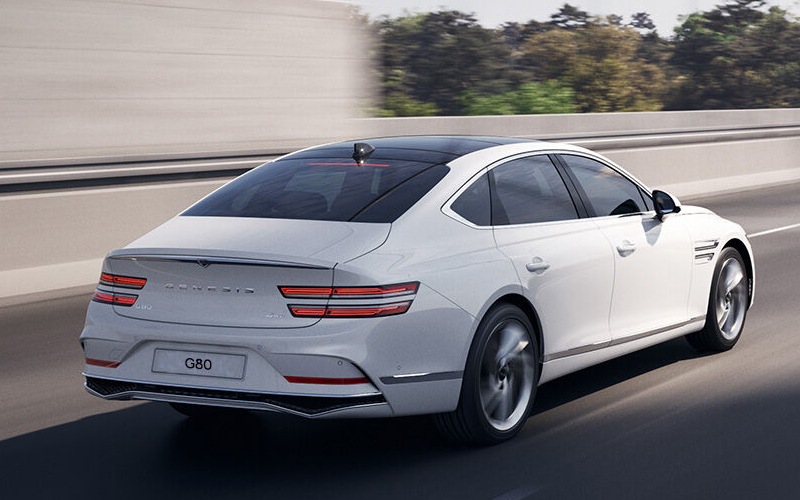
Genesis Of Southfield – Can I Use Wireless Apple CarPlay® and Android Auto™ in the 2026 Genesis G80 near Dearborn, MI?
The 2026 Genesis G80 places your digital life front and center with an expansive 27″ OLED display designed to make everyday driving feel effortless. For shoppers near Dearborn, MI, a big real-world question is whether the G80 supports wireless Apple CarPlay® and Android Auto™—and how that plays out in daily commutes along Michigan Avenue, the Southfield Freeway, and I-94. The answer is yes: the G80 offers wireless Apple CarPlay® and Android Auto™ compatibility, blending seamless connectivity with the sedan’s intuitive controls so you can focus on the drive while staying connected to what matters.
At Genesis Of Southfield, we see how much this single feature can change day-to-day ownership. Going cordless reduces clutter, shortens startup time, and makes it easier to hop in, drive, and get on with your day—whether that’s a quick run to Fairlane Town Center or a cross-town commute between Dearborn and Southfield.
What “wireless” means—and why it matters on Dearborn drives
Wireless Apple CarPlay® and Android Auto™ stream your apps over Bluetooth and Wi-Fi without plugging in a cable. In the G80, that means your maps, calls, messages, and music appear on the 27″ OLED display with crisp detail and smooth response. The format is familiar and distraction-reducing: large touch targets, intuitive layouts, and dependable voice assistants (Siri or Google Assistant) keep your hands and attention on the road through Dearborn’s frequent traffic lights and quick lane changes near the Southfield Freeway interchanges.
Because the system is cable-free, you avoid fumbling for cords in the parking lot at Greenfield Village or when you’re rotating drivers at the curb outside The Henry Ford Museum. The connection establishes shortly after start-up and remembers your last device, so your routing and playlists are back in a snap.
Quick setup: pairing your phone the right way
Getting started is straightforward. Plan for a couple of minutes the first time, then the G80 handles the rest automatically on subsequent drives.
- Start your G80 and wait for the 27″ OLED display to fully load.
- On the display, open the device connection or Bluetooth menu and choose to add a new device.
- On your phone, enable Bluetooth and scan for your G80; confirm the pairing PIN on both screens.
- When prompted, allow Apple CarPlay® or Android Auto™ and accept the requested permissions.
- Keep both Bluetooth and Wi-Fi enabled on your phone for wireless operation.
- Finish the on-screen prompts; you should see your phone’s interface appear on the G80 display.
- Set preferred notification and audio settings so calls and messages behave the way you want.
If you encounter any hiccups, a quick reset—toggling Bluetooth off/on or restarting the display’s connection menu—usually clears it. Our team can also help you pair your devices during your test drive or delivery walk-through.
Everyday wins around Dearborn with wireless integration
Wireless Apple CarPlay® and Android Auto™ shine in routine moments that add up over a week of driving. Voice-to-text lets you respond to a message from a coworker near the Ford campus hands-free, while lane guidance in your preferred maps app helps you confidently navigate the tight merges approaching I-94.
Music and podcast control become second nature. With your most-used apps pinned to the first page, the 27″ OLED display puts favorites just a tap away, and the G80’s steering wheel controls let you flip tracks or adjust volume without leaving the flow of traffic near Michigan Avenue. If you prefer to avoid taps altogether, just say “Hey Siri” or “Hey Google” to queue your next destination or start a playlist.
For families, the convenience is noticeable when everything is happening at once—carpool drop-off on Outer Drive, a grocery pickup, then a dinner reservation in Downtown Dearborn. Profiles and saved preferences on the G80 help return the cabin to your settings, while your phone reconnects wirelessly, pulling up the next stop without extra steps.
Tips to keep connections reliable
Most owners never have to think about connectivity after the first setup, but a few habits keep everything running smoothly during your Dearborn routine.
- Check updates: Keep your iPhone or Android device on the latest software for best stability and app performance.
- Enable Wi-Fi and Bluetooth: Wireless Apple CarPlay® and Android Auto™ need both turned on for a steady connection.
- Manage paired devices: If multiple phones are in the car, choose your preferred device on the G80’s connection screen to avoid conflicts.
- Avoid battery savers: Some power-saving modes can limit background data—turn those off while driving for uninterrupted streaming.
- Use wired as a backup: If you are in a reception-challenged garage or a long call, a USB connection can be a helpful fallback.
- Preload maps: Download offline areas in your navigation app before longer drives to keep guidance active if coverage dips.
If you want a quick refresher or best-practice setup for your specific phone model, our team can walk you through it in a couple of minutes and tailor the audio and notification preferences to your liking.
Which 2026 G80 trims include this feature?
The G80 lineup features the expansive 27″ OLED display that brings key information and navigation into clear view, and it offers wireless Apple CarPlay® and Android Auto™ compatibility for smartphone integration across your drives. That means whether you are considering a well-equipped 2.5T AWD or exploring the athletic 3.5T Sport Prestige AWD, you can plan on the same cable-free convenience when you connect your phone.
If you want to build an even more comprehensive tech experience, select trims and add complementary systems, such as Head-Up Display on the 3.5T Sport Prestige AWD, which helps keep key driving info in your line of sight. Others add Surround View Monitor and Blind-Spot View Monitor to support confident maneuvering in tighter Dearborn lots and garages.
How this integrates with G80 safety and comfort
Wireless connectivity fits naturally alongside the G80’s thoughtful driver assistance and ride technologies. Lane Following Assist 2 helps you stay centered in your lane during longer stretches on I-94, while available Electronically Controlled Suspension with Road Preview can help smooth out broken pavement that is common on metro routes. When you combine those with voice-first apps, the car feels calm and unhurried—even when your schedule is not.
The result is a sedan that does more than mirror your phone. It leverages the G80’s sizable display, intuitive menus, and precise controls so your tech enhances the drive rather than distracting from it.
Frequently Asked Questions:
Do I need a data plan for Apple CarPlay® or Android Auto™ to work?
These smartphone integrations use your phone’s cellular connection for maps, messages, and streaming audio. The G80 does not require a separate plan to run Apple CarPlay® or Android Auto™. If you use Genesis Connected Services for other features, those services have their own terms.
Can I pair more than one phone and switch between them?
Yes. You can store multiple paired devices and choose which one to connect for Apple CarPlay® or Android Auto™ at the start of a trip. If two paired phones are in the cabin, select your preferred device from the G80’s connection menu so the system knows which to prioritize.
Will wireless Apple CarPlay® or Android Auto™ drain my battery faster?
Any wireless streaming increases phone power use compared with being idle. The simplest fix is to keep a charging cable handy and plug in when it is convenient, or schedule quick top-ups during stops so your battery stays healthy throughout the day.
Does wireless integration affect the G80’s built-in navigation or audio?
No. You can use your preferred app via Apple CarPlay® or Android Auto™, or switch to the G80’s native navigation and audio features at any time. Steering wheel controls and voice commands continue to work with either path.
Our goal at Genesis Of Southfield is to make the tech feel as effortless as the drive itself. If you would like a personalized demonstration, we are happy to connect your phone, set up voice controls, and show you how the 27″ OLED display handles maps, messages, and music in ways that suit your routine around Dearborn. Ready to experience the 2026 Genesis G80 for yourself? Visit us at 28000 Telegraph Rd in Southfield for a relaxed test drive, or contact our team to start your build and explore our convenient Buy Online process. We will help you compare trims, walk through feature differences, and make sure your phone pairs perfectly before you head home.
Request more 2026 Genesis G80 information
Connect with us

